These instructions may vary depending on the specific version and plan of Sage Intacct you have — menu names, screens, and import limits change between plans and over time. If a step doesn't match what you see, check Sage Intacct's specific help documentation for your edition.
How this works
General accounting systems don't understand cumulative pay applications — but every pay application boils down to one incremental amount: the current payment due. The generator's Export button (in the toolbar above the form) turns the application you're working on into a CSV invoice for exactly that amount: a line per schedule-of-values item billed this period, plus one retainage-and-stored-materials adjustment row that makes the invoice tie to the application's bottom line. Import each application as its own invoice as you bill it.
Export to Sage Intacct, step by step
- 1Download the CSV from your pay applicationOpen your pay application in the generator and click Export in the toolbar above the form. In the dialog, choose Sage Intacct as the CSV format, then Download CSV (or Copy CSV to paste it into a spreadsheet). The file is an invoice for exactly that application's current payment due.
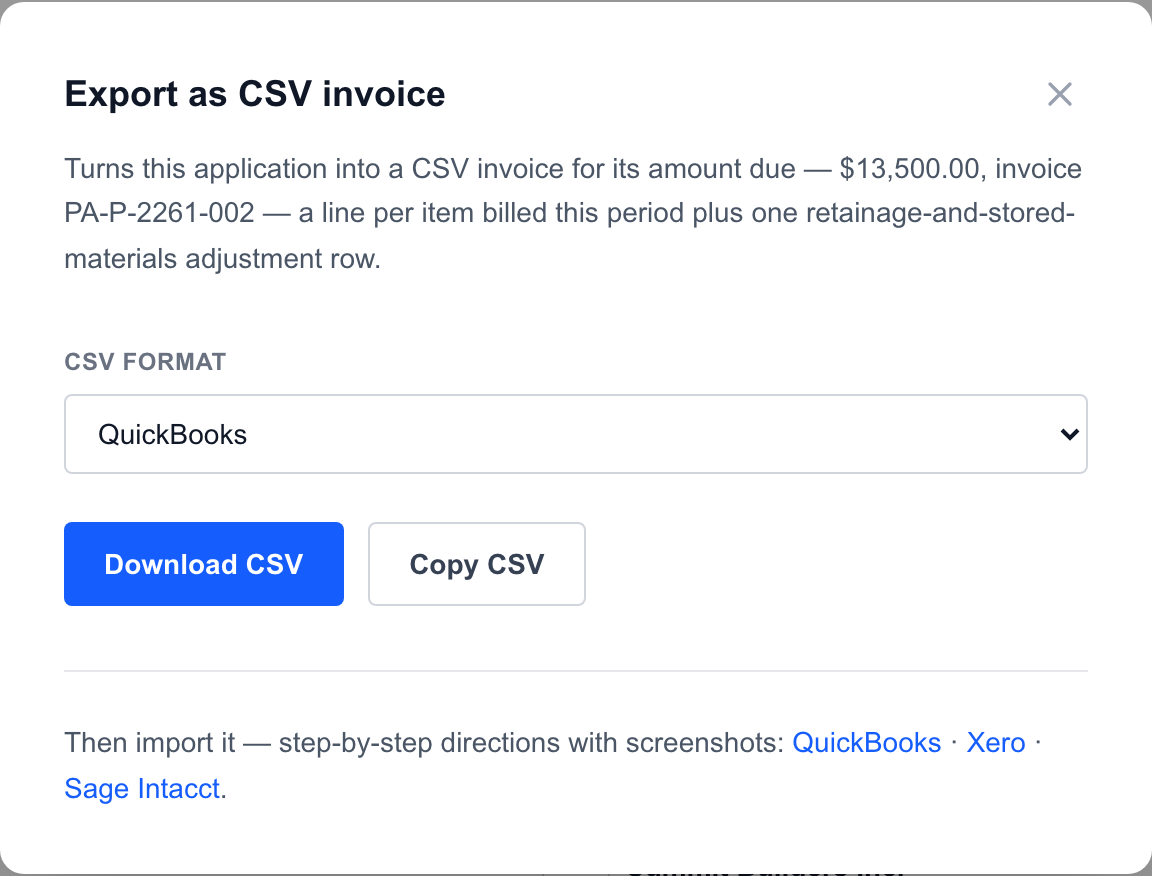
The Export button opens this dialog; pick your system's format there. - 2Download Intacct's templateIn Sage Intacct, open Company → Setup → Import data (or Accounts Receivable → Invoices → Import) and download Intacct's AR invoice import template.
- 3Copy these rows into itThe columns here (INVOICE_NO, CUSTOMER_ID, CREATED_DATE, DUE_DATE, LINE_NO, MEMO, ACCT_NO, AMOUNT) match the standard template's fields, with invoice-level values on the first line and one numbered line per row.

Sage Intacct's own AR invoice import template with example rows — from Sage Intacct's documentation, © Sage Group plc. - 4Fill the Intacct-specific IDsReplace the CUSTOMER_ID value with the customer's Intacct ID — Intacct matches by ID, not display name — and fill ACCT_NO with your revenue (or retainage receivable) account for each line.
- 5Run the importRun the import from the same screen and verify the posted invoice equals this application's current payment due.
Good to know
- •CSV import is included across Sage Intacct editions, but your role needs import permissions — check with your Intacct administrator.
- •Intacct templates vary by configuration (dimensions, locations, entities add columns like LOCATION_ID and DEPT_ID). Pasting these rows into the template downloaded from YOUR company avoids mismatched columns.
- •Dates use the US M/D/YYYY format.
How pay applications become invoices
A pay application is cumulative; accounting systems bill period by period. Each export is one invoice for the application's current payment due, and the retainage adjustment row can be booked against income (simple) or a retainage-receivable account (accrual-proper). The full methodology — both retainage methods with worked examples, the accounts to set up, and the monthly tie-out that keeps your ledger matching your certified billing — is covered in the accounting guide.
Build the pay application first — the export button sits right next to the download.
Create a pay applicationUsing a different system? QuickBooks · Xero · or the system-agnostic accounting guide.
Not affiliated with or endorsed by Intuit, Xero, or Sage. QuickBooks, Xero, and Sage Intacct are trademarks of their respective owners. Import features vary by plan and configuration — verify in your own account.